

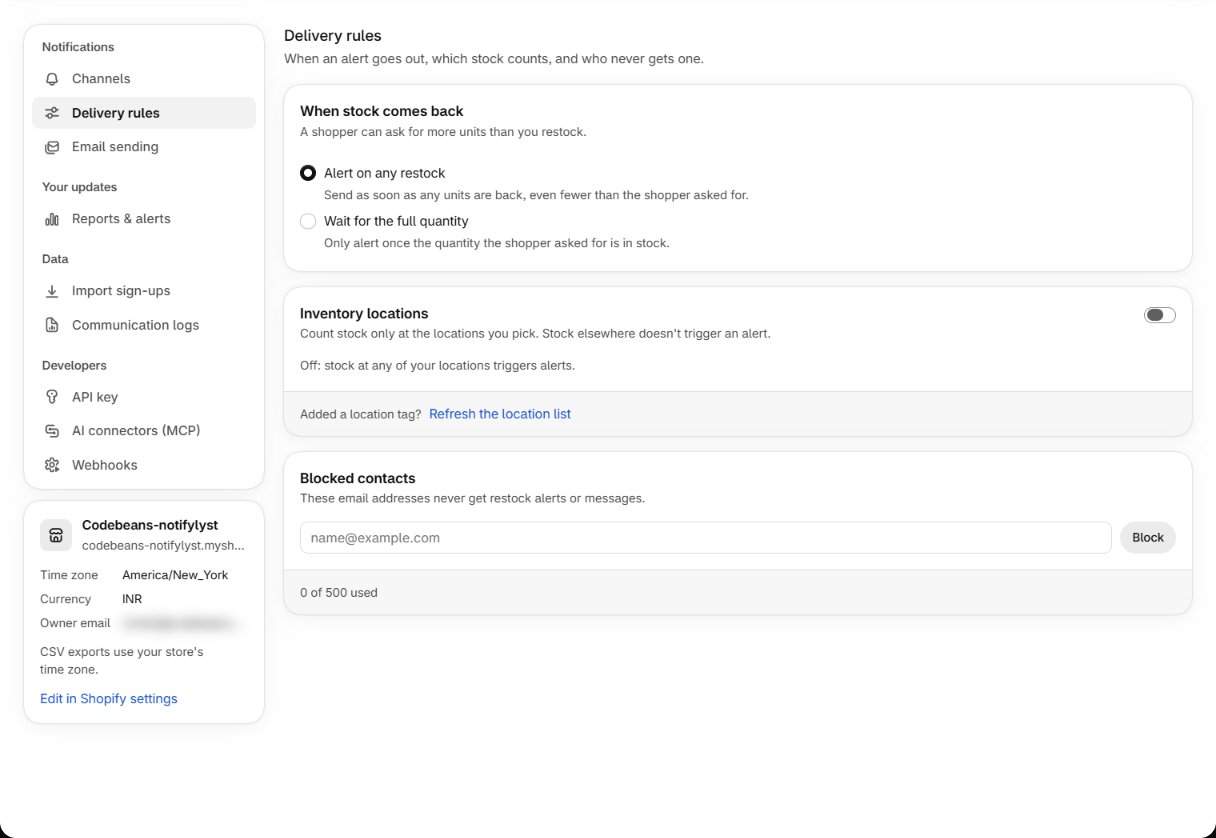
When stock comes back
Shoppers can ask for more than one unit on the sign-up form (Quantity required). This setting decides what happens when you restock fewer units than someone asked for.Inventory locations
Off by default: stock arriving at any of your locations triggers alerts. Switch on Count stock only at selected locations to alert only when stock arrives at the locations you pick, by location tag. Stock elsewhere doesn’t trigger an alert. Location tags come from the Multi-Location Inventory Info app; after you add a tag there, press Refresh the location list.
Blocked contacts
Email addresses listed here never get restock alerts or any other message from Notifylyst. Type the address in Email address to block and press Block. Up to 500 addresses.Who else is skipped
Even with the rules above, Notifylyst never alerts a shopper who:- unsubscribed from that product or from all your alerts,
- has an email address that bounced,
- already bought the product after an earlier alert,
- chose a channel that is now switched off or not on your plan,
- is waiting for a product that is no longer Active and published to your online store.
What shoppers can do themselves
Every restock email has Manage Notifications and Unsubscribe links. Unsubscribing opens a confirmation page where the shopper chooses Stop alerts for THIS product only or Unsubscribe from ALL future alerts. SMS and web push messages don’t carry these links. The full shopper side: A shopper manages their alerts.Import sign-ups
Next: bring in an existing waiting list.
Message templates
Steps, delays and wording.