

What the extension adds
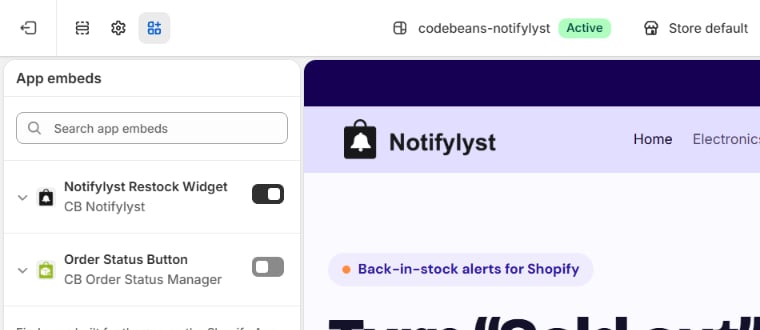
1. Switch on the app embed
- Online Store → Themes → Customize on your live theme (or use the first step of the setup guide on Home, which opens it for you).
- Open App embeds in the left sidebar.
- Switch on Notifylyst Restock Widget.
- Save.
2. Choose how shoppers reach the form
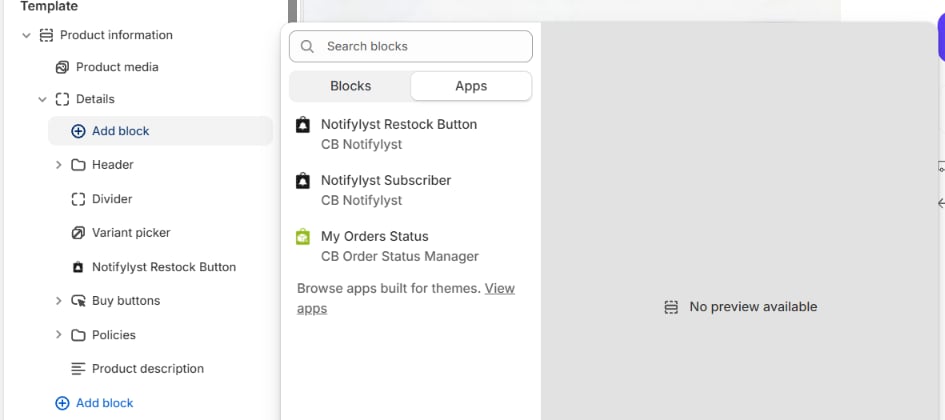
- In the theme editor, switch the preview to a product template — ideally a sold-out product, so you see the result straight away.
- Add block in the product information section, and pick Notifylyst Restock Button under Apps.
- Drag it under the Add to cart button.
- Save.
3. Check it on the storefront
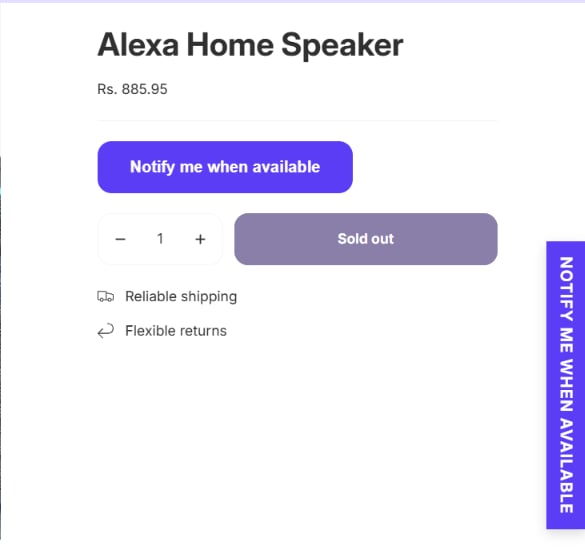
Open a sold-out product as a shopper and pick the sold-out variant. You should see the button. Click it and the sign-up form opens.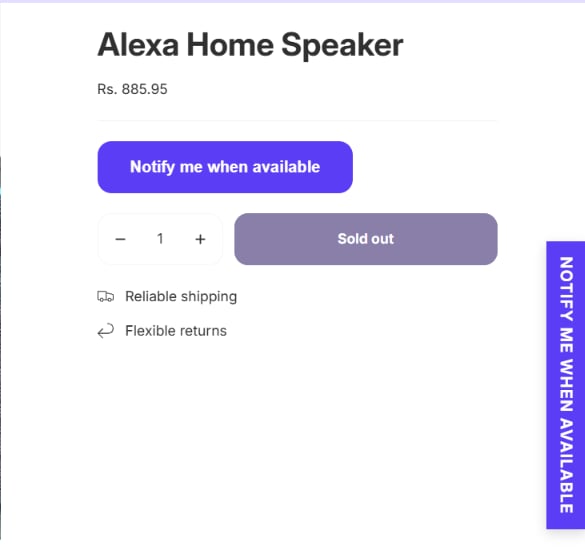
The subscriber list
Add the Notifylyst Subscriber block to a page logged-in customers visit (for example a customer account or a “My alerts” page). It shows them a table of their own sign-ups — product, variant, channel, date and status — with search, filters and an Unsubscribe button. Guests see nothing. The block’s settings choose the title (NotifyMe List for This Product by default), the columns, colours, rows per page and date format.Buttons on collection pages and custom themes
A theme developer can open the form from any element — a collection card, a quick-view — by giving it the classcb-notifylyst-trigger and the product’s data in data-product-data:
If the button does not appear
Web push needs your live domain. The browser’s permission prompt only works over HTTPS on the
real storefront, not inside the theme editor preview. On an iPhone, shoppers must add your store to
their Home Screen before push can be used.
Notification channels
Next: choose how shoppers hear that their product is back.
Customize appearance
Make the button and form look like your store.