

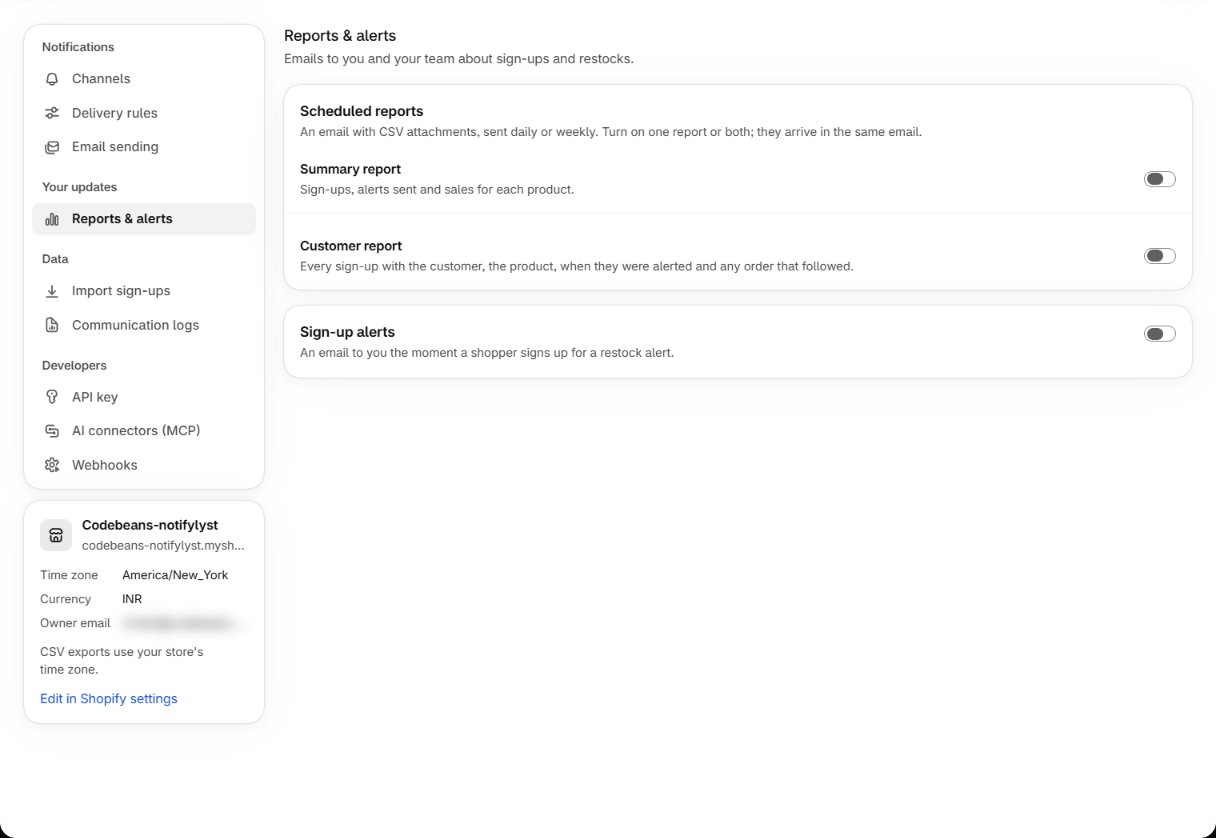
Scheduled reports
One email with CSV attachments, sent daily or weekly. Turn on one report or both; they arrive in the same email.How often and what it covers are different things. How often is when the email arrives;
Report covers is how far back each email looks. A weekly email covering 30 days is a rolling
month, delivered every Sunday.
Sign-up alerts
An email to you or your team the moment a shopper signs up — titled New Notification Added - Notifylyst, with the channel, contact, product, SKU, quantity, locations and form answers. Reply to it and your reply goes to the shopper’s email address.What they cost
Every report email and every sign-up alert uses one notification from your plan’s email & web push allowance (then your wallet). The whole Reports & alerts section depends on Summary Reports in your plan — including sign-up alerts. On a plan without it you see Summary reports are not included on your plan.The activity feed
Dashboard → View all activity is the live stream of sign-ups, alerts and purchases. Where the reports are for deciding, the feed is for watching — on the day of a big restock, or just after you changed a setting. See Read your analytics.Choosing between them
Billing and credits
Next: how sends are paid for.