

1
Install Notifylyst and choose a plan
Install from the Shopify App Store and approve the permissions. If your store has no plan yet, the
app shows Choose a plan to get started and takes you to Shopify’s plan page. Pick a plan
(paid plans start with a free trial) and approve it — you land back on Home.More on plans: Change your plan.
2
Turn on Notifylyst in your theme
The first step of the guide. Notifylyst is a theme app extension: nothing appears on your
storefront until you switch on its app embed, Notifylyst Restock Widget. It loads the
Notify me button and the sign-up form on every page.Press Open theme editor in the step, open App embeds, switch on Notifylyst Restock
Widget, and Save. Back in the app, the guide checks your live theme and ticks the step — or
tells you Still off in your theme. Switch it on and save.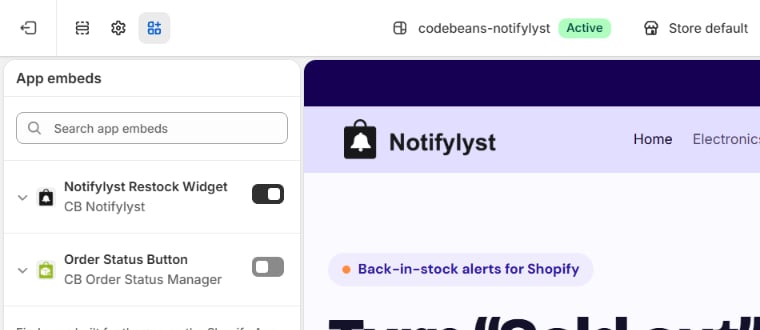
3
Show the Notify me button
Choose how shoppers reach the form: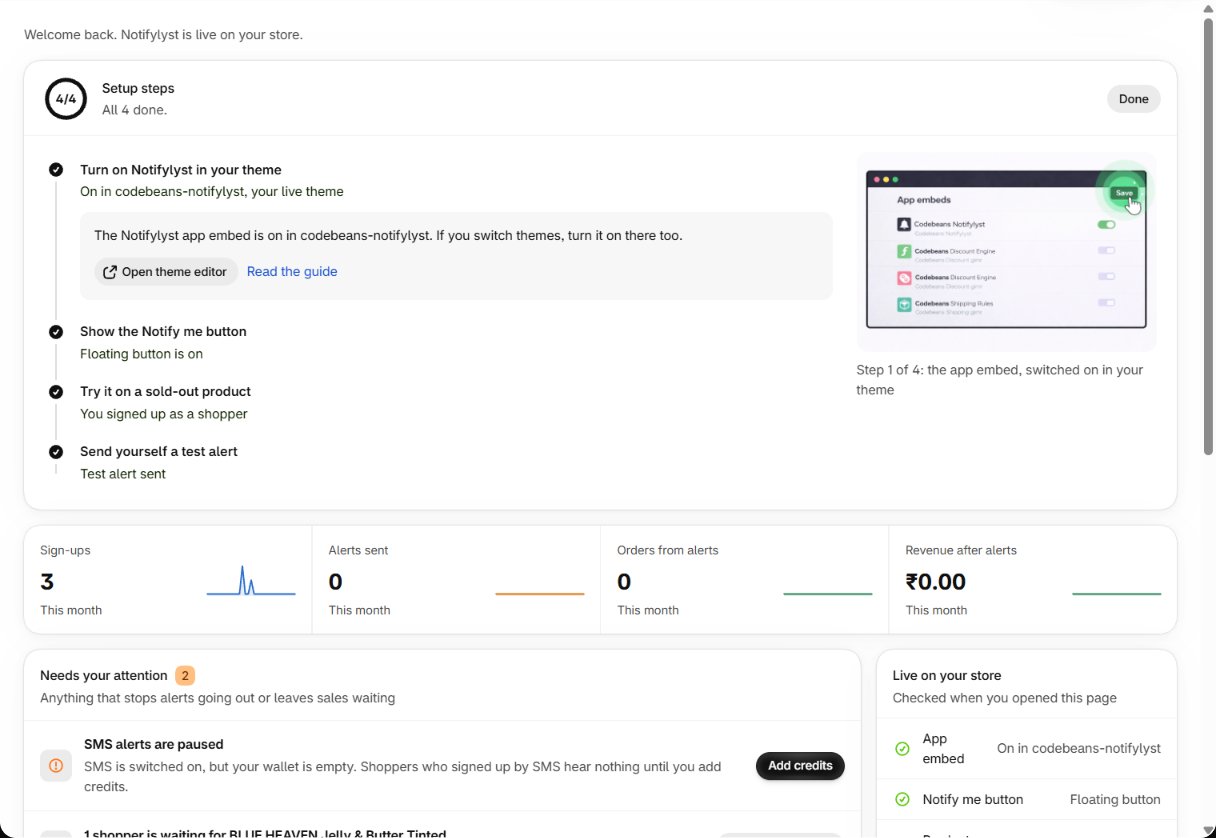
- Turn on floating button — a tab on the edge of every product page, shown only when the selected variant is sold out. Styled under Appearance → Notify me button.
- or add the Notifylyst Restock Button block to your product template, so the button sits next to Add to cart.
4
Try it on a sold-out product
Open a sold-out product on your storefront, choose the sold-out variant, and press Notify me
when available. Sign up with your own email address. Then press It works in the guide.Your sign-up appears in Analytics → Sign-ups within moments — the fastest proof that
everything is connected.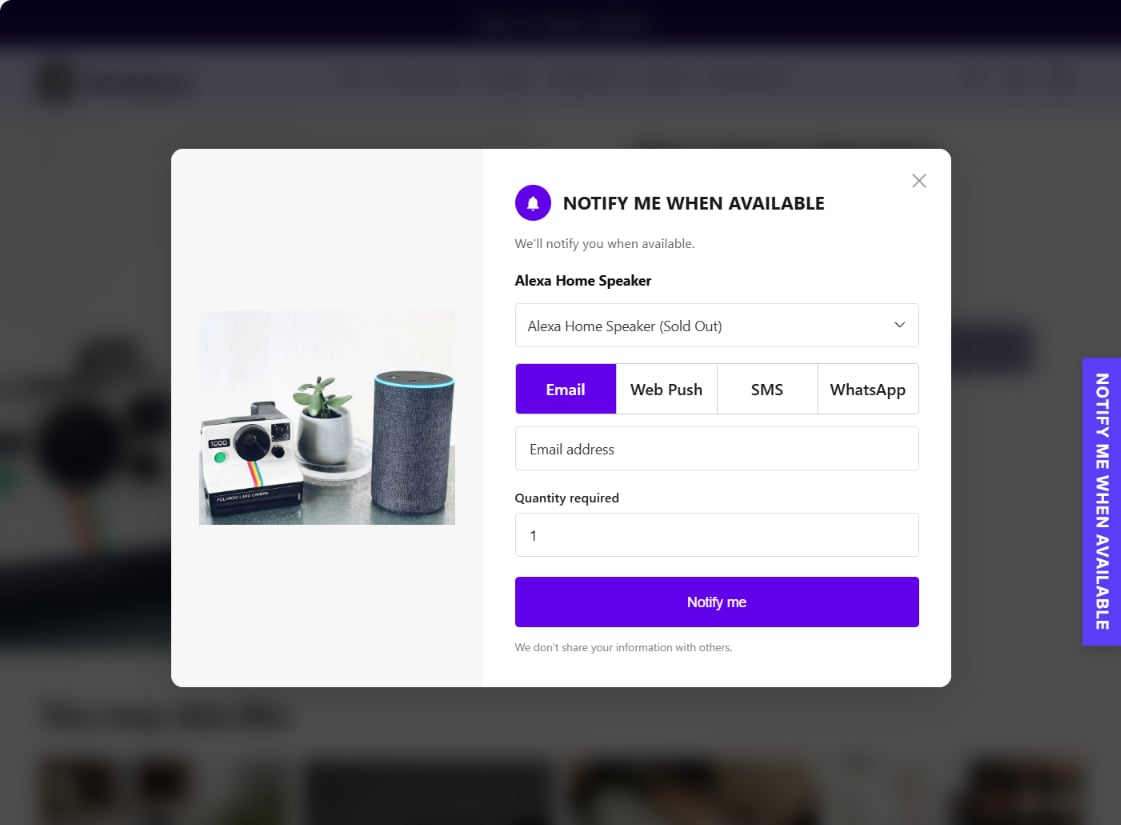
5
Send yourself a test alert
Press Send test alert to open Appearance → Notifications, then Send test email. You
get the exact message a shopper receives when the product is back.Email is on from the start. Web push you switch on yourself; SMS needs a one-time activation
review — see Notification channels.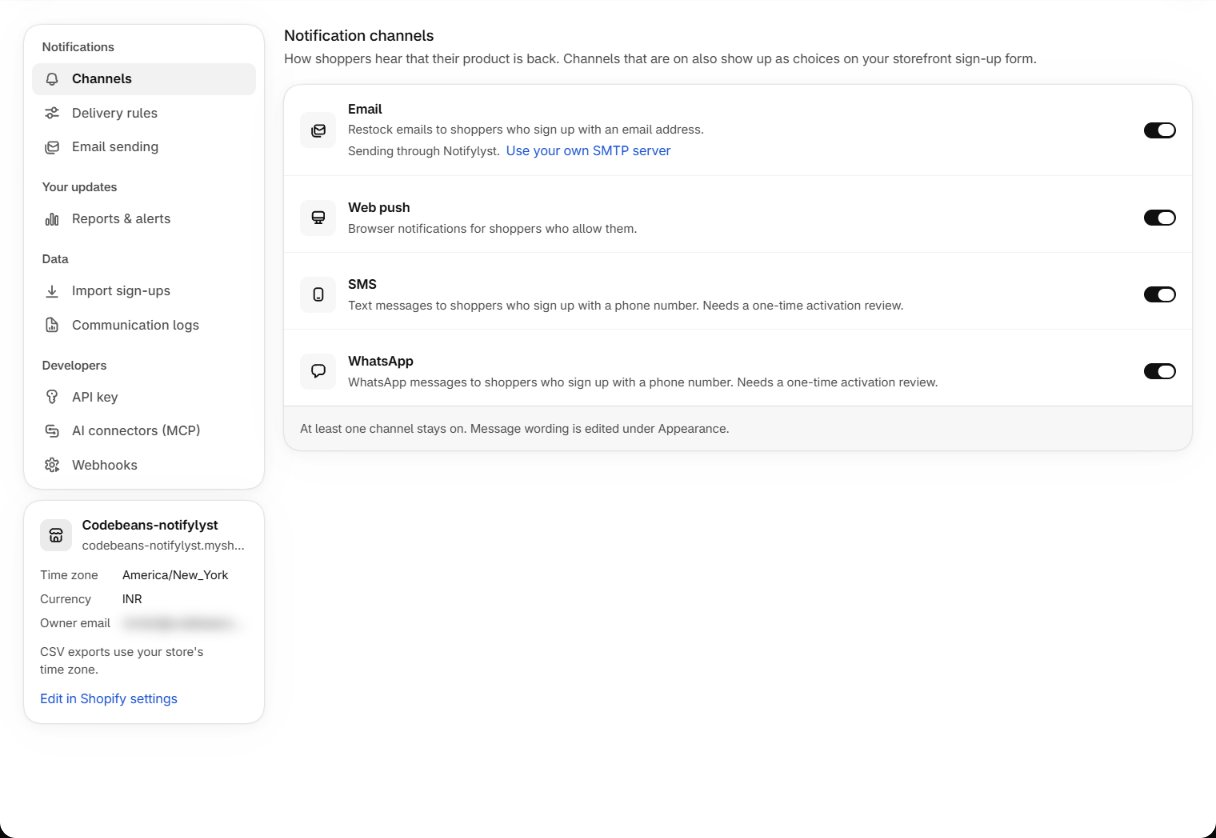
That is the whole loop. Home now says You are all set. Sign-ups collect against your
products, and the moment stock comes back, everyone waiting is alerted.
Worth doing in your first week
Your first day, as a story
The same steps, with what to check at each one.
Set up
Each setup task in full.