

1
Install and choose a plan
Install Notifylyst from the Shopify App Store and approve its permissions. The app asks you to
Choose a plan to get started and sends you to Shopify’s plan page; approve a plan there. Paid
plans can start with a free trial.It worked if: you land on Home, greeted with the setup guide.
2
Turn on Notifylyst in your theme
Press the first step of the setup guide. Your theme editor opens; switch on Notifylyst Restock
Widget under App embeds and save.It worked if: the guide ticks the step and shows Notifylyst is on in your theme. If it says
Still off in your theme. Switch it on and save., you probably edited a draft theme — do it on the
live one.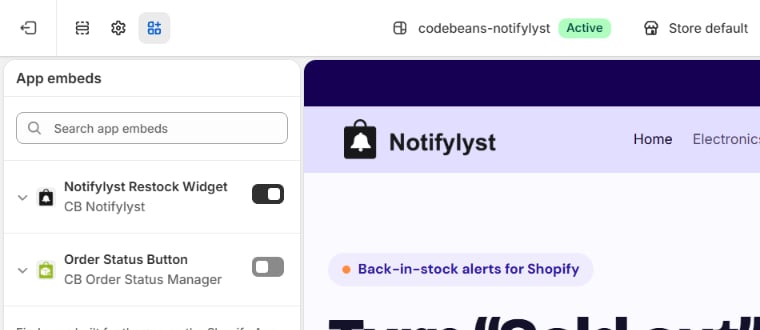
3
Show the Notify me button
Press Turn on floating button for a tab on the edge of product pages, or add the Notifylyst
Restock Button block to your product template. Then make it yours under Appearance — the
button and form.It worked if: Home’s Live on your store card lists the Notify me button.
4
Try it on a sold-out product
Open your storefront in another tab, find a sold-out product, choose the sold-out variant and press
Notify me when available. Sign up with your own email address and press It works.It worked if: your sign-up appears in Analytics → Sign-ups and in Recent activity on the
Dashboard.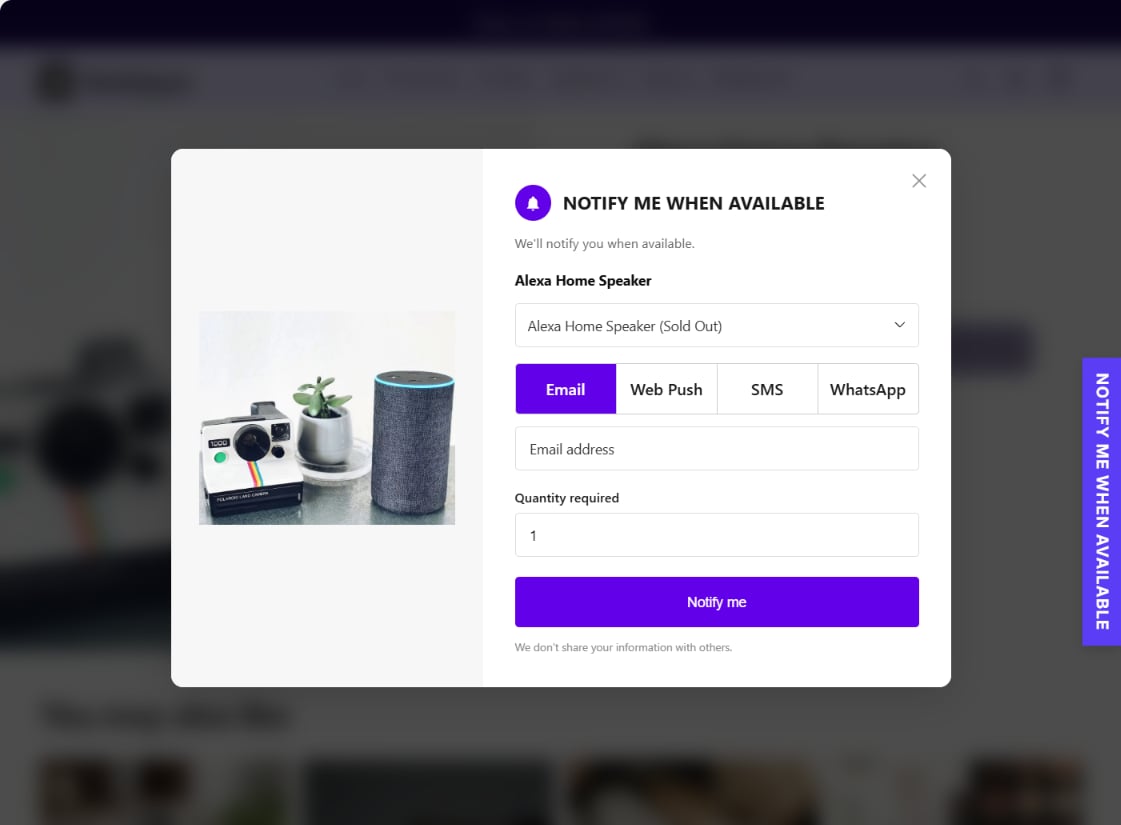
5
Send yourself a test alert
Press Send test alert, then Send test email in Appearance → Notifications.It worked if: the email arrives, and Settings → Communication logs lists it as Sent.
Read it as a shopper would — is the sender name right? Is the wording yours? See
Message templates.
6
You are all set
Home now reads You are all set — All 4 setup steps are done. From here, Home’s Needs your
attention card tells you when something stops alerts going out, and Do more with Notifylyst
suggests what to switch on next.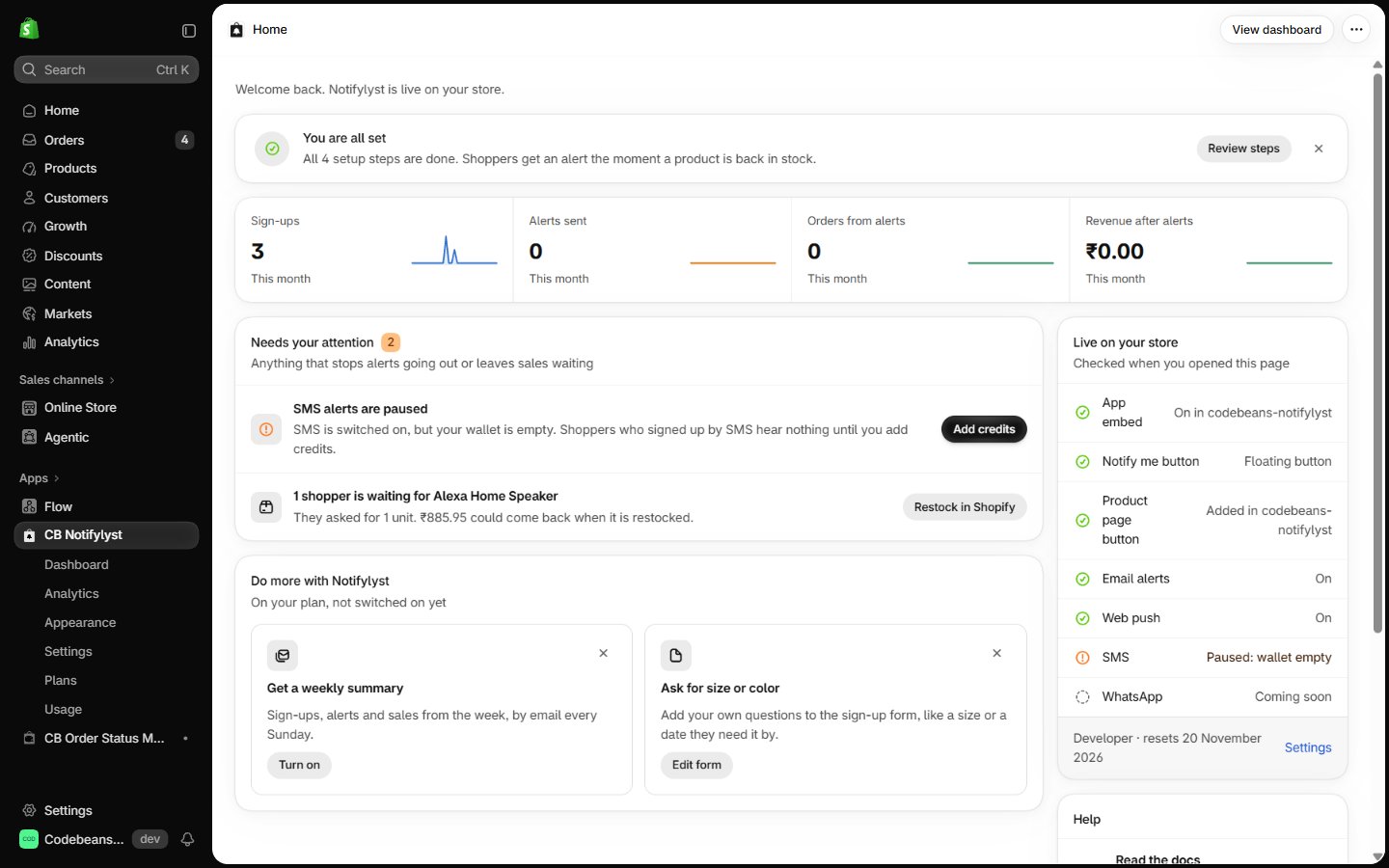
What happens behind the scenes
Nothing is added to your theme’s code: the embed and blocks are part of Notifylyst’s theme extension, and the button and form settings are stored with your store in Shopify, so the storefront loads them without calling Notifylyst’s servers. From now on Shopify tells Notifylyst whenever stock changes; you don’t schedule anything.Where it can go wrong
A shopper gets a restock alert
The other side: what your shoppers experience.
Quickstart
The same steps as a short checklist.